Create your first Mind
Go from an empty workspace to an instance you can connect to.
Creating a Mind gives your applications a home for memory and knowledge. Both Free and Pro are intended to run dedicated Firecracker VM–based Akasha instances. Free caps usage; upgrading is meant to give the same Mind more room to run.
Deployment requirement
The initial audit found Render and Kubernetes provisioning paths. The latest local customer flow now delegates to the new instance service, but its hosted Firecracker lifecycle has not yet been verified. Do not use the plan name alone as proof of the deployed runtime. Instance model.
1. Open Helm
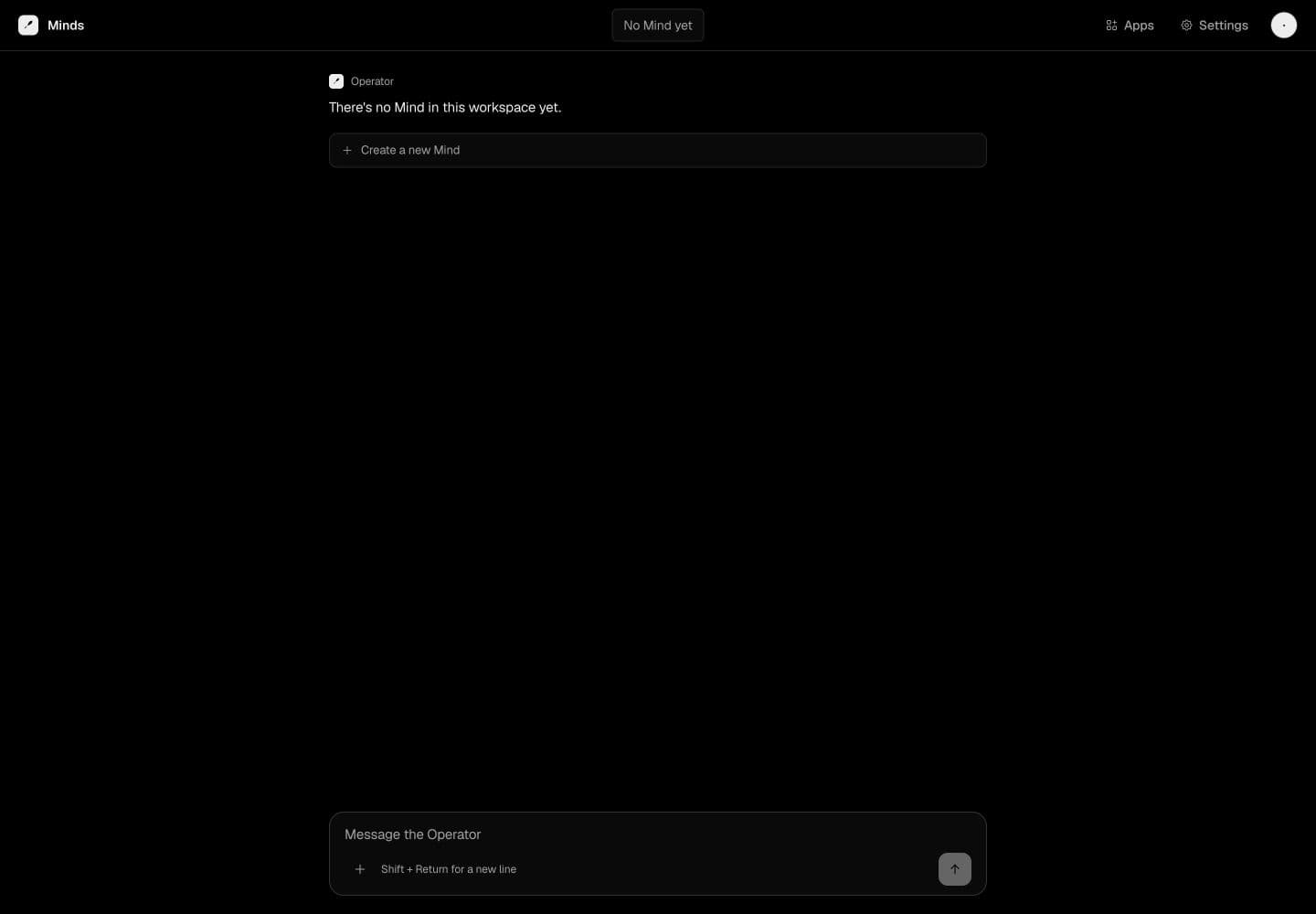
After signing in, Minds opens the chat workspace. The current interface labels Helm Operator. In an empty workspace, choose Create a new Mind.
2. Choose a region
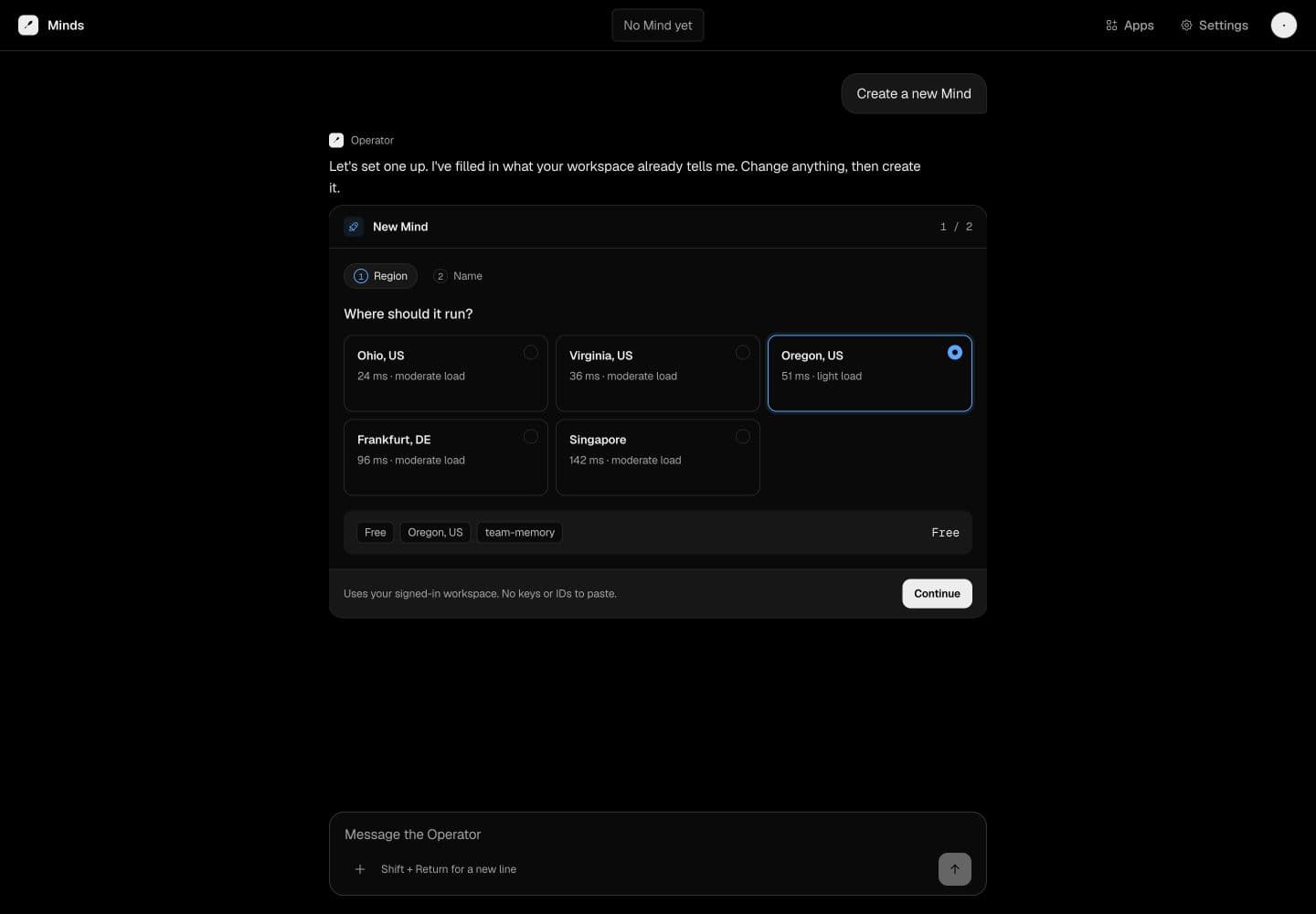
Choose a location close to the applications that will use the Mind. The creation card shows the available regions and its current selection. Availability and displayed estimates can change.
3. Name and review
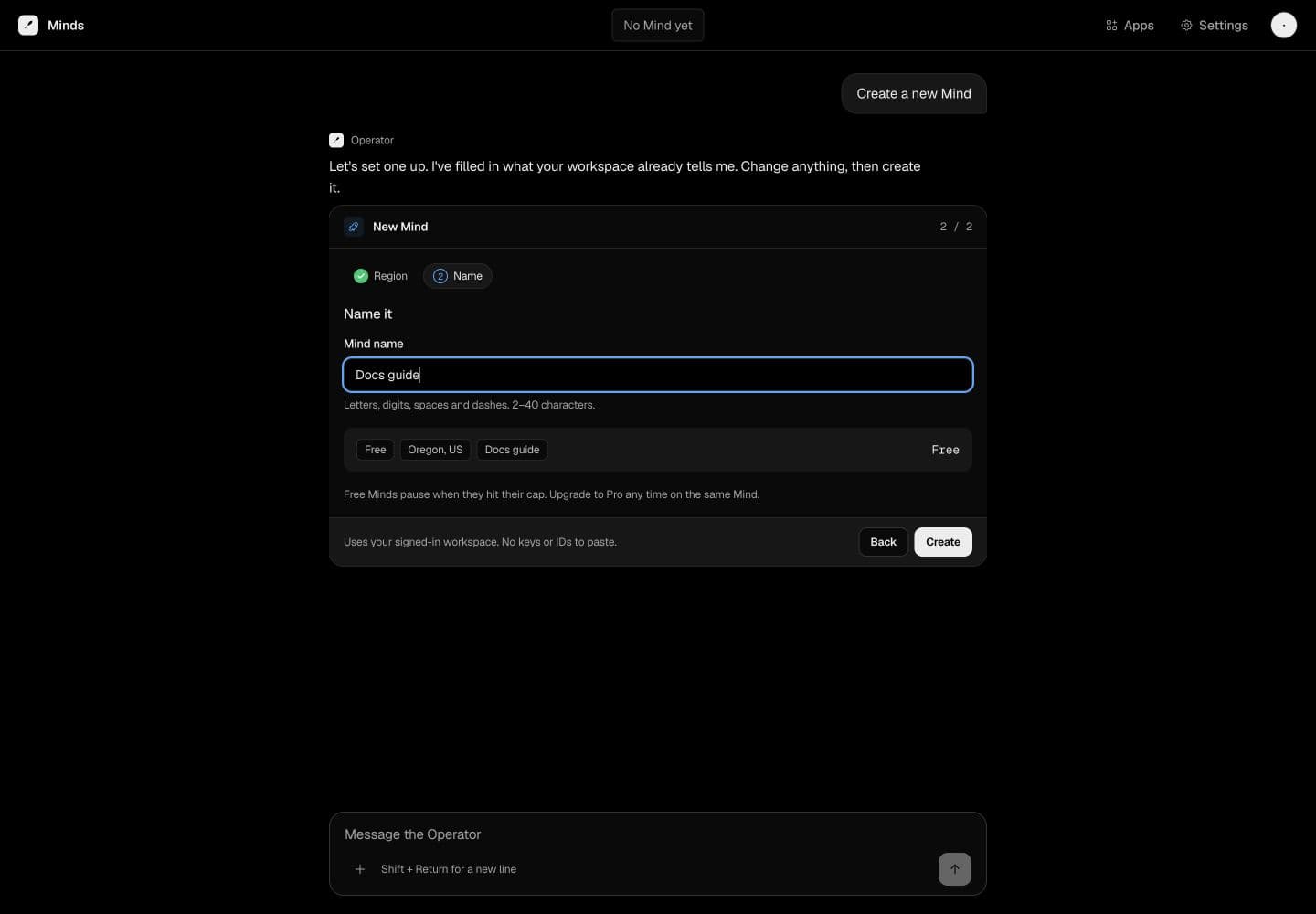
Use a name you will recognize later, such as Research memory. The creation form accepts 2–40 letters, numbers, spaces, or dashes. Review the selected region and plan, then submit once.
4. Confirm readiness
Wait for the operation to finish, then confirm that the Mind appears in the instance selector. Open its management view and record its endpoint. A submitted request is not the same as a ready instance.
Before integrating it, use the connection check to verify authenticated access. For a memory workflow, follow that with a write and a separate read of a harmless test record.
If creation fails
If the page reports an organization lookup error, resolve the organization selection first. If creation reports HTTP 500, check whether a partial instance exists before retrying. Keep the request time, region, and any visible request ID for support; never include your password or capability in a report.